mailsequence

Personalize email communication and automate workflows directly within Bitrix24 CRM

  • Design custom email sequences with flexible timing and rules
  • Trigger emails automatically from CRM updates or actions
  • Monitor results with real-time tracking and detailed reports

About MailSequence

MailSequence is a Bitrix24 application that helps sales and marketing teams create, automate, and monitor email sequences without leaving their CRM.

Whether you need to follow up with new leads, nurture deals through different sales stages, reconnect with inactive contacts, or standardize team outreach, MailSequence provides the tools to build structured email campaigns that can be launched manually or triggered automatically by CRM events.

The application supports multiple email providers, personalized templates, configurable sending rules, detailed delivery tracking, and performance analytics, giving teams complete visibility over every email sequence.

Key Features

  • Create multi-step email sequences with customizable workflows
  • Launch sequences manually or automatically based on Bitrix24 CRM events
  • Build personalized emails using standard and custom CRM fields
  • Support for SMTP, SendGrid, and Mailgun
  • Configure sender identities, reply-to addresses, and email signatures
  • Control sending speed, business hours, daily limits, and priorities
  • Monitor opens, clicks, replies, bounces, failures, and unsubscribe events
  • View recipient-level and automation-level analytics
  • Maintain detailed activity logs for troubleshooting and auditing


Typical Use Cases

  • New lead follow-up campaigns
  • Deal stage nurturing
  • Customer re-engagement campaigns
  • Automated reminder sequences
  • Standardized sales outreach across teams


Benefits

  • Improve follow-up consistency
  • Reduce repetitive manual work
  • Maintain better control over email delivery
  • Increase visibility into campaign performance
  • Keep communication organized inside Bitrix24

Solutions
that work for you.

WORKSPACE

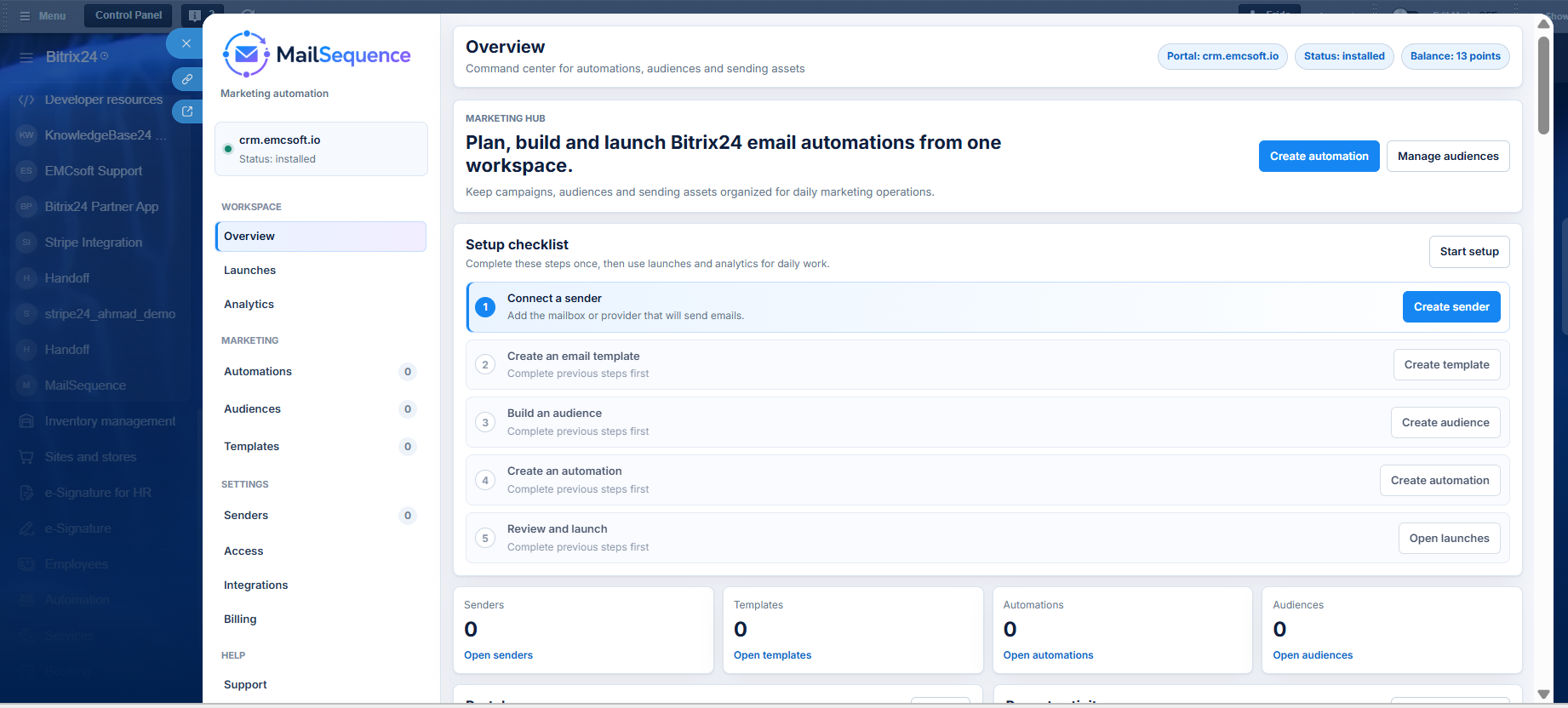
Overview

The Overview page provides a summary of the application's current configuration and activity.

  • Available Information
  • Total configured senders
  • Number of email templates
  • Total automations
  • Number of audiences
  • Recent application activities
  • Connected Bitrix24 portal information
This page gives administrators a quick overview of the application's current setup and recent usage without opening individual modules.

Launches

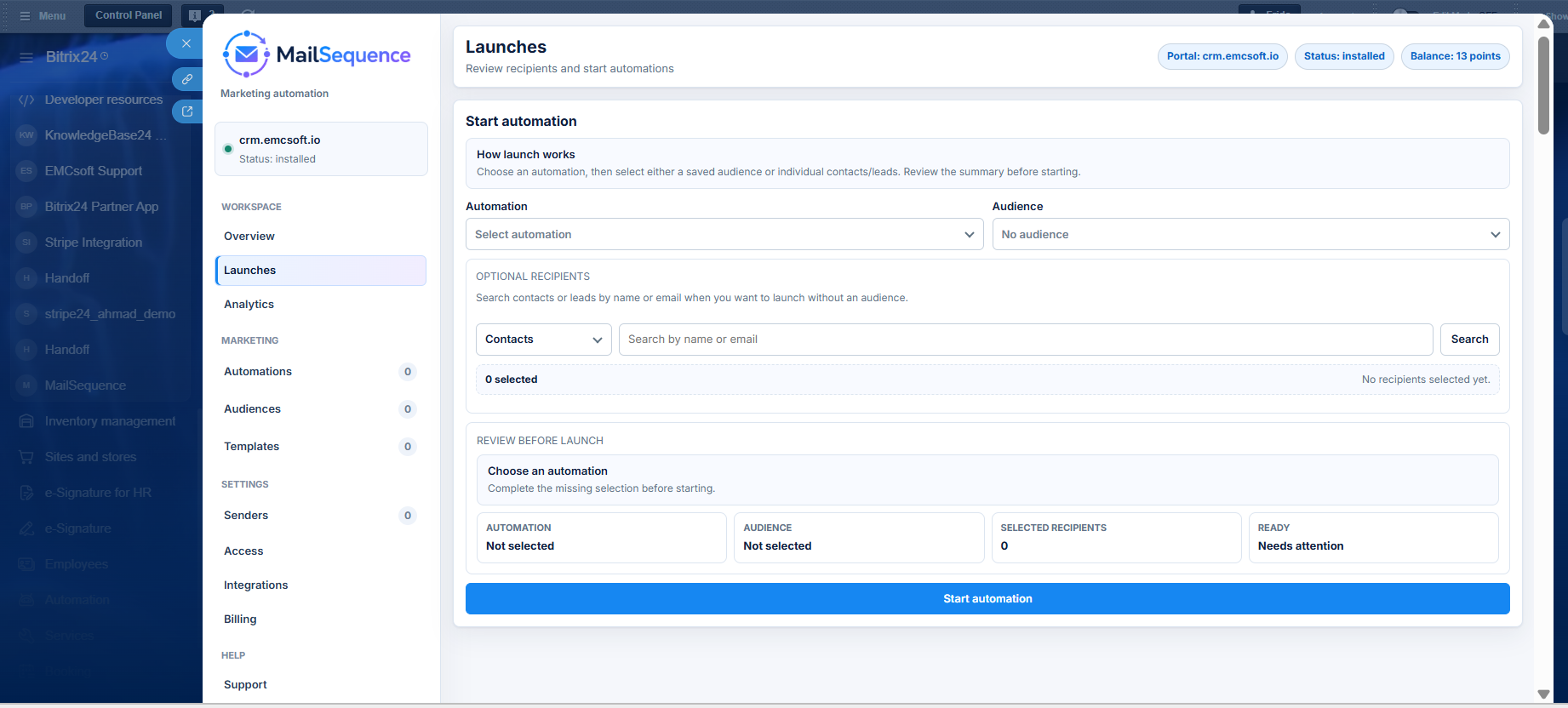
The Launches section allows users to manually start existing automations for selected CRM records.

Features

  • Select an existing automation
  • Choose an audience
  • Search contacts manually
  • Select individual recipients
  • Launch automations immediately
This section is intended for campaigns that require manual review before sending, allowing users to decide exactly which recipients should enter an automation.

Analytics

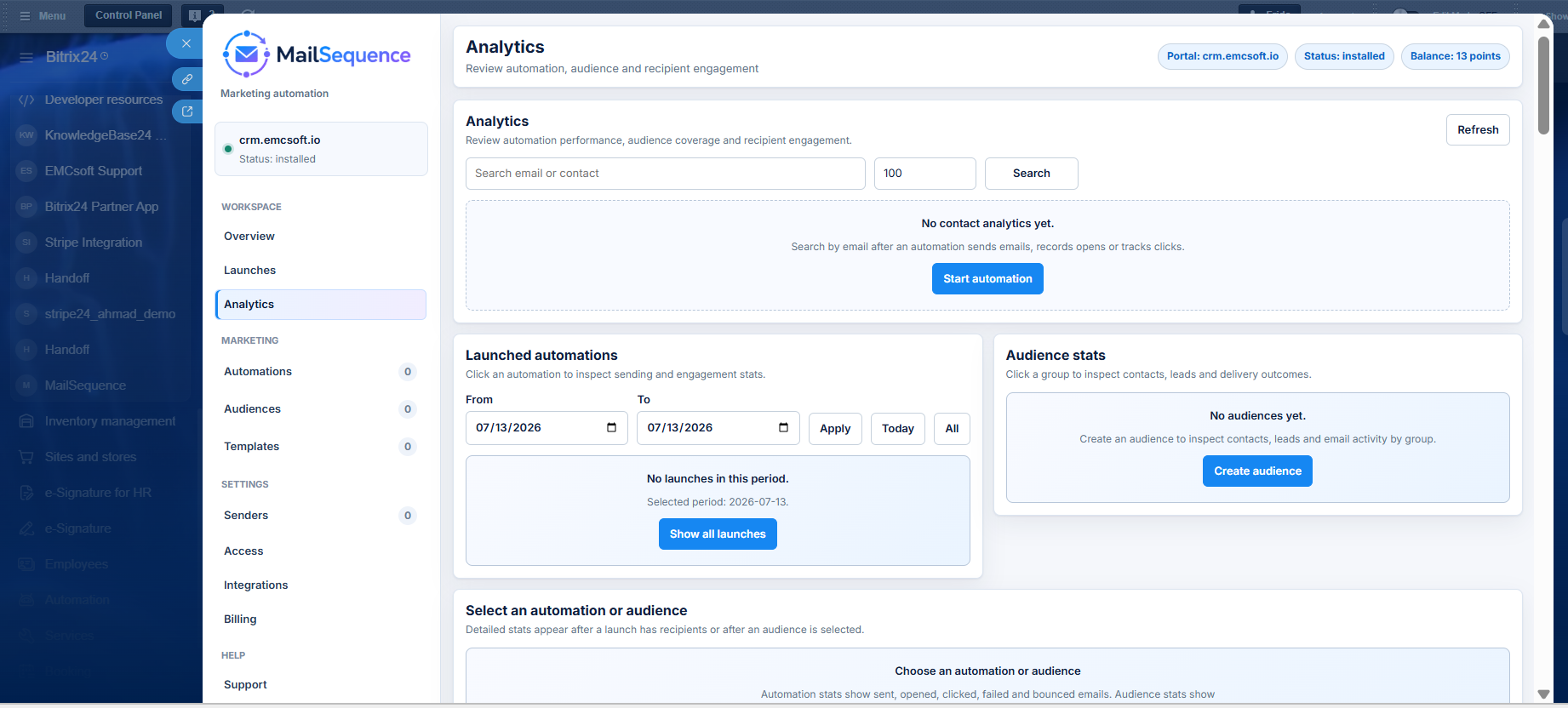
The Analytics section provides reports on automation performance and recipient engagement.

Features

  • Search by contact name or email
  • Filter analytics by date
  • Review launched automations
  • Inspect individual audience performance
  • Monitor recipient engagement

Automation Statistics

  • Emails sent
  • Emails opened
  • Link clicks
  • Replies
  • Failed deliveries
  • Bounced emails

Audience Statistics

  • Contacts included
  • Leads included
  • Delivery status
  • Individual engagement history
Analytics helps users evaluate campaign performance, identify delivery issues, and measure recipient engagement across every automation

MARKETING

AUTOMATIONS

The Automations module is used to build and manage email sequences.

It consists of five configuration steps.

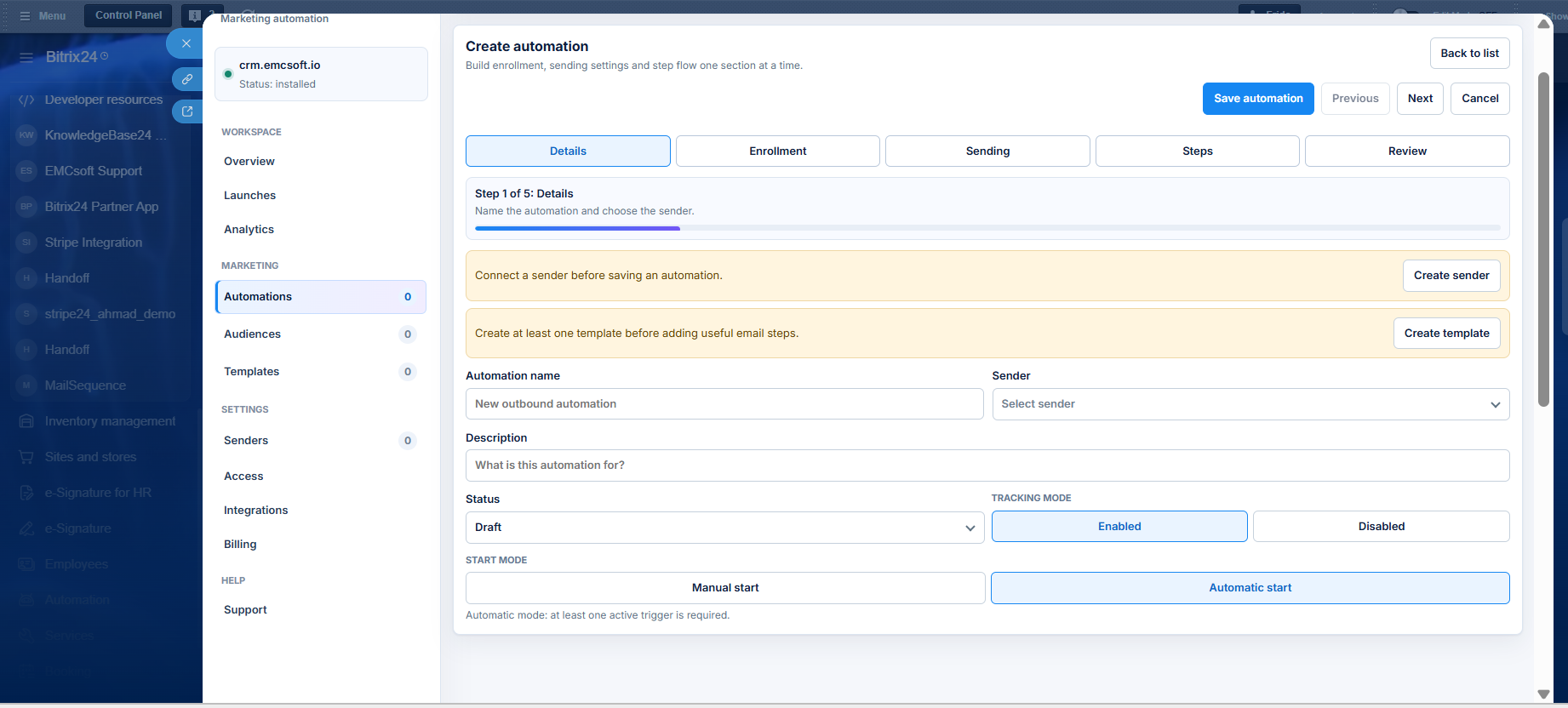
Details

Configure the basic information for an automation.

Options
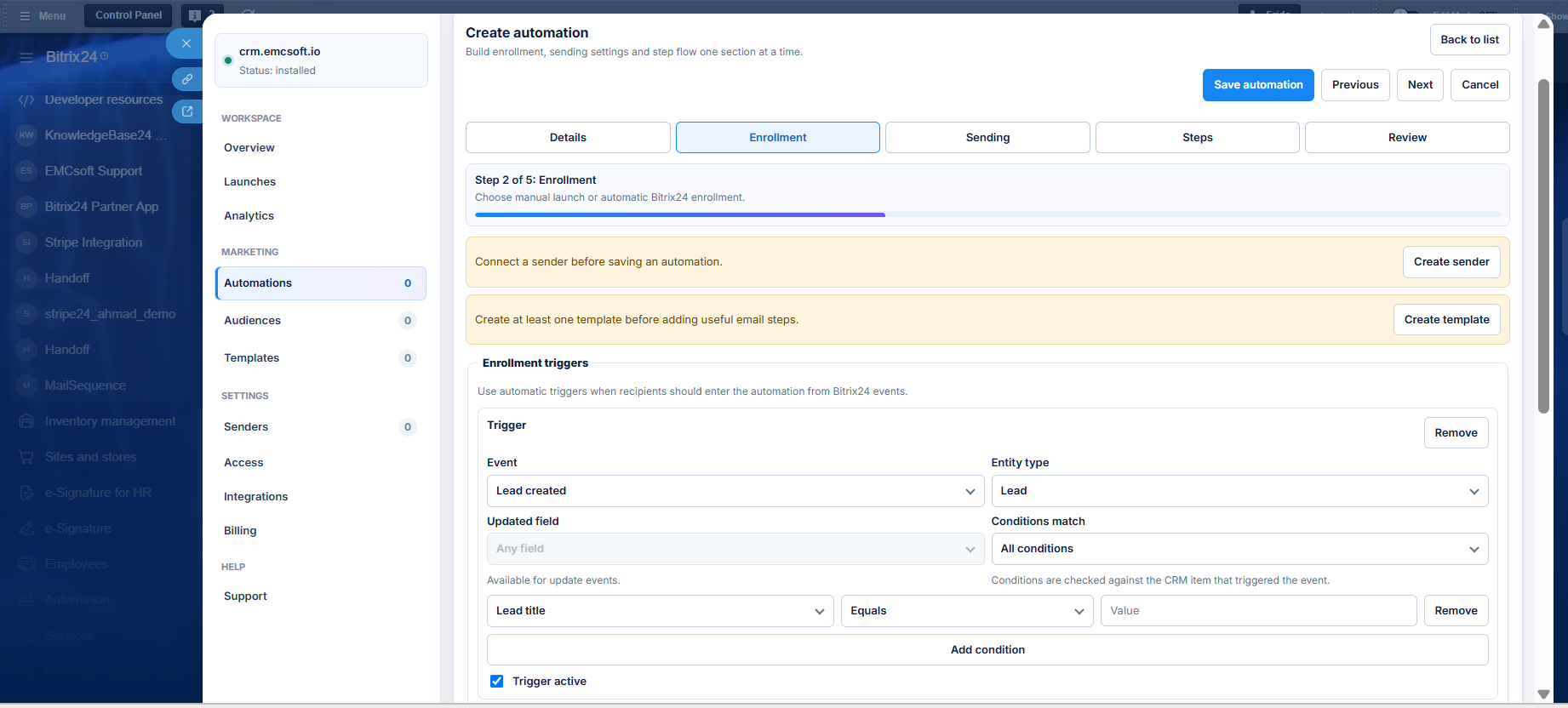
  • Automation name
  • Connected sender
  • Description
  • Status (Draft, Ready to Launch, Paused,Archived)
  • Tracking Mode (Enabled, Disabled)
  • Start Mode (Manual Start, Automatic Start)
Manual Start
Recipients are selected manually from the Launches section.

Automatic Start
The automation begins automatically whenever configured CRM triggers are met.

This section defines the identity and behavior of an automation before configuring its workflow.

Enrollment

Configure how recipients enter an automation.

Manual Enrollment

When Manual Start is selected:

  • No triggers are required
  • Recipients are selected manually from Launches

Automatic Enrollment

When Automatic Start is selected:

Users can configure one or more triggers.

Trigger Configuration

Each trigger allows:
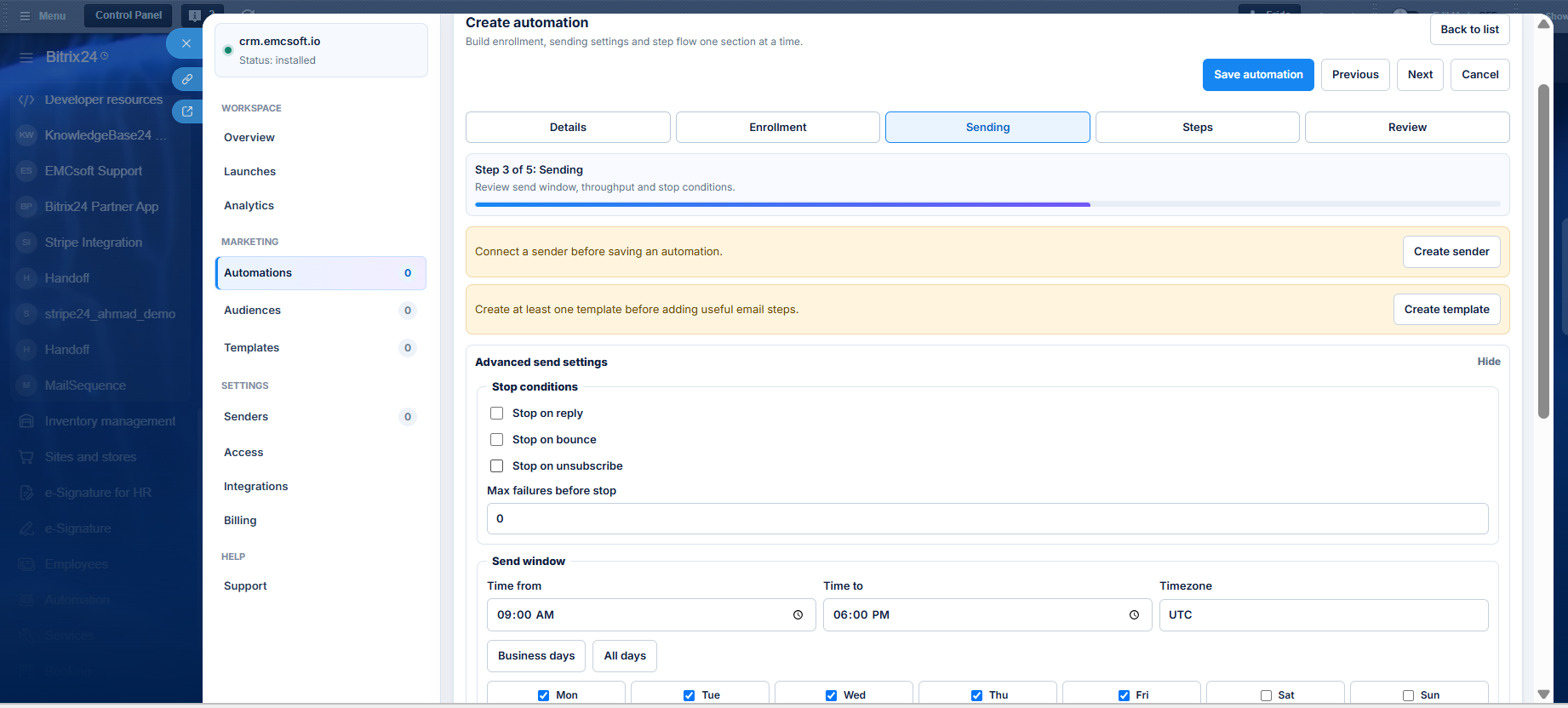
  • Event type
  • CRM entity (Lead, Contact, Deal)
  • Event detection field
  • Conditions
  • Match logic (All conditions, Any condition)
  • Active/Inactive status
Enrollment determines how contacts, leads, or deals become participants in an automation.

SENDING

Configure sending behavior and delivery limits.

Stop Conditions
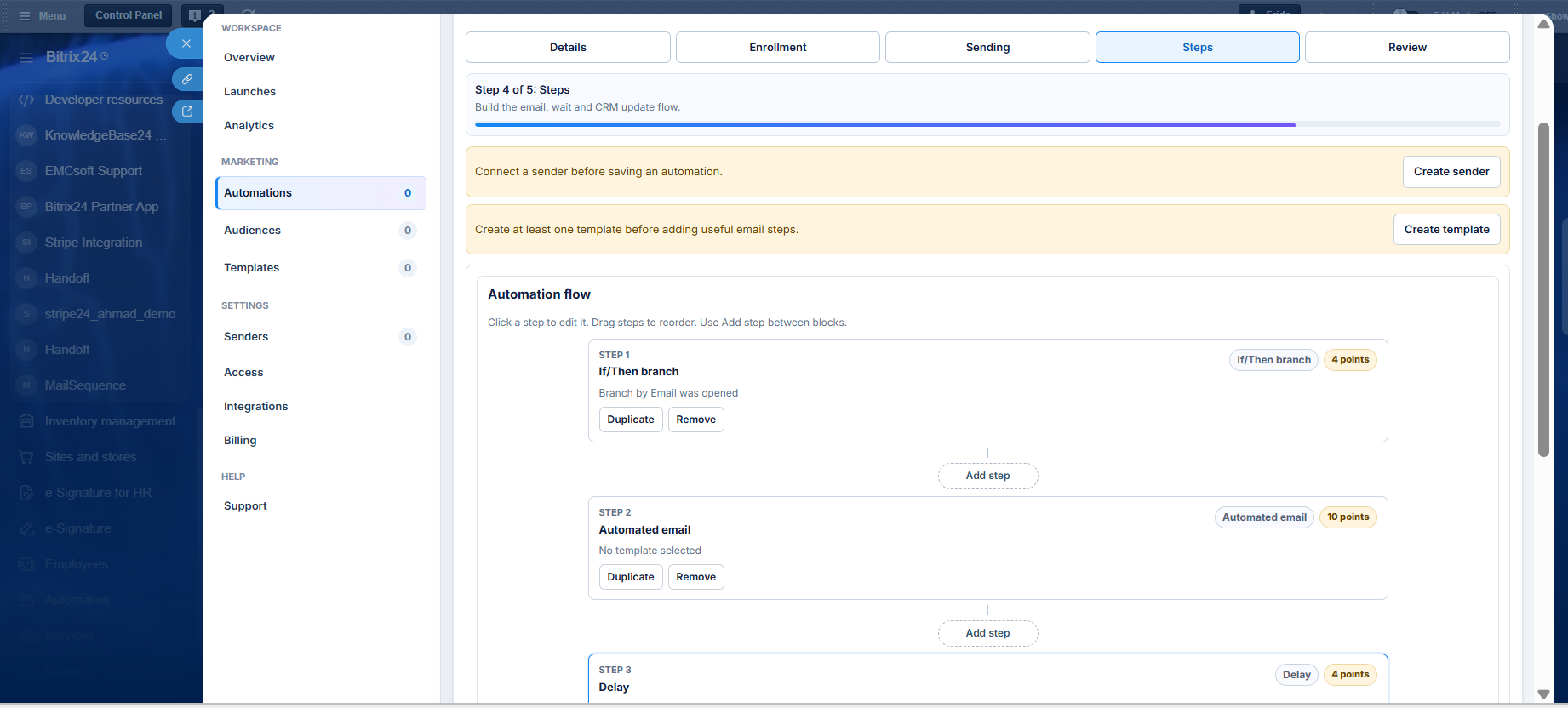
  • Stop after recipient replies
  • Stop after bounce
  • Stop after unsubscribe
Failure Control
  • Maximum allowed failures before stopping
Send Window
  • Start time
  • End time
  • Time zone
  • Business days
  • All days
Throughput
  • Sending speed
  • Daily sending limit
  • Additional random delay
  • Minimum delay
  • Maximum delay
Priority
  • Low
  • Normal
  • High
Sending settings help control delivery timing and reduce the risk of sending emails too aggressively.

Steps

Design the automation workflow.

Available Step Types
  • Automated Email
  • Delay
  • If/Then Branch
  • Task
  • Update CRM
  • Stop Sequence
Step Configuration
  • Step name
  • Email template selection
  • Email preview
  • Tracking enable/disable
  • Enable or disable email signature
Workflow Management
  • Drag and reorder steps
  • Insert steps between existing steps
  • Edit any step at any time
This section defines the complete sequence of actions that recipients experience during an automation.

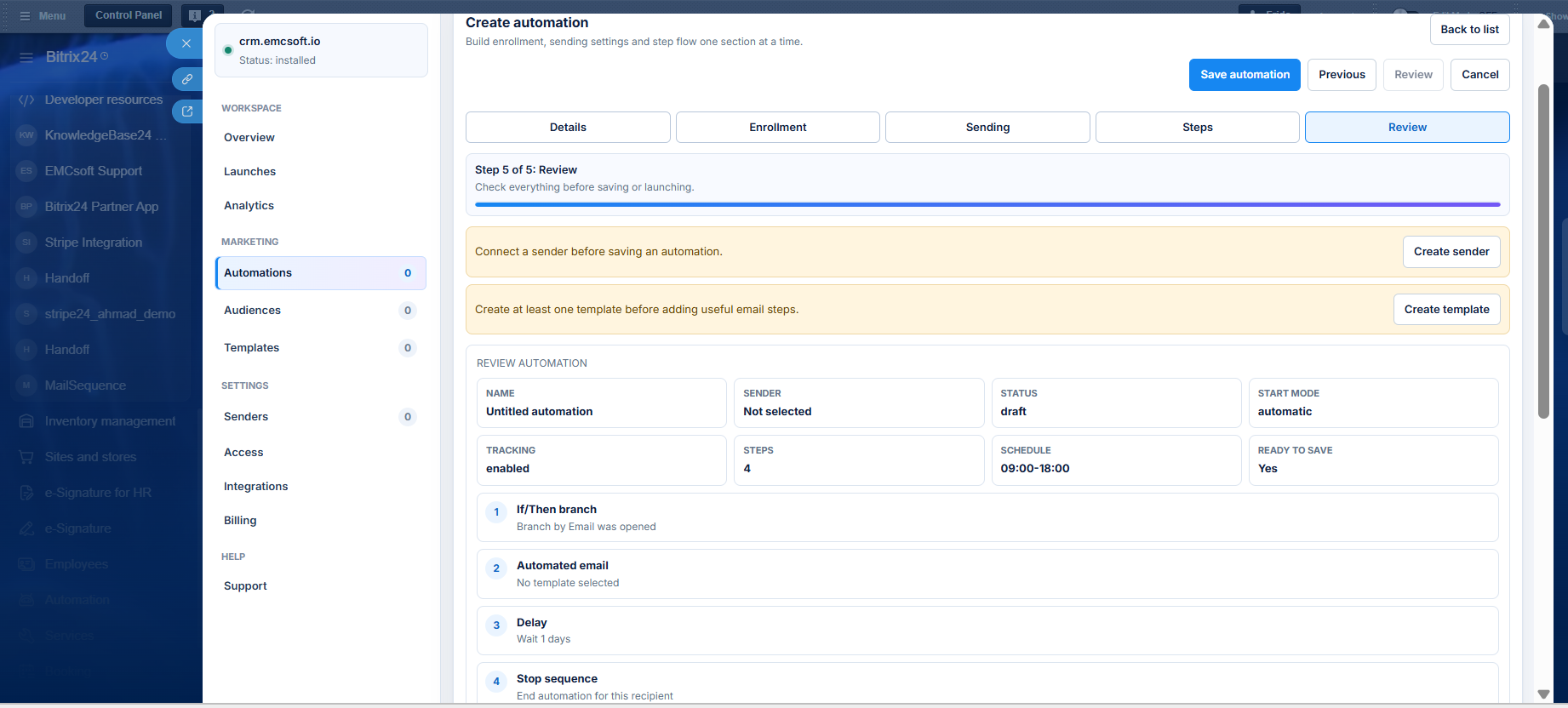
REview

Review every configuration before saving the automation.

Review Includes
  • Details
  • Enrollment
  • Sending settings
  • Workflow steps
The Review page provides a complete summary of the automation, allowing users to verify all settings before publishing or saving.

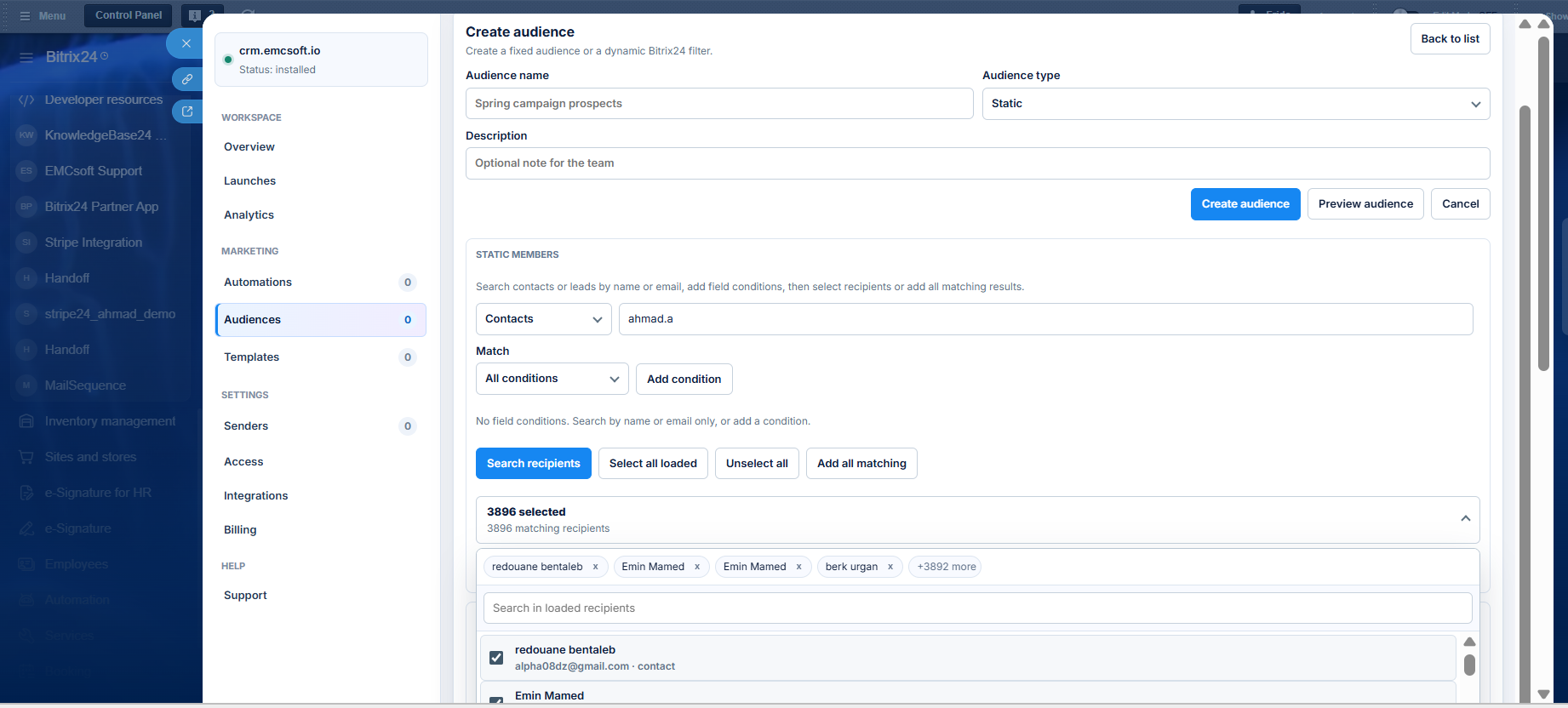
Audiences

The Audiences module manages recipient groups.

Features

  • Audience name
  • Audience type (Static, Dynamic)
  • Search contacts by name
  • Search contacts by email
  • Dynamic filtering using CRM fields
  • Exclude specific email addresses
Audiences make it easier to organize recipients into reusable groups for manual or automated campaigns.

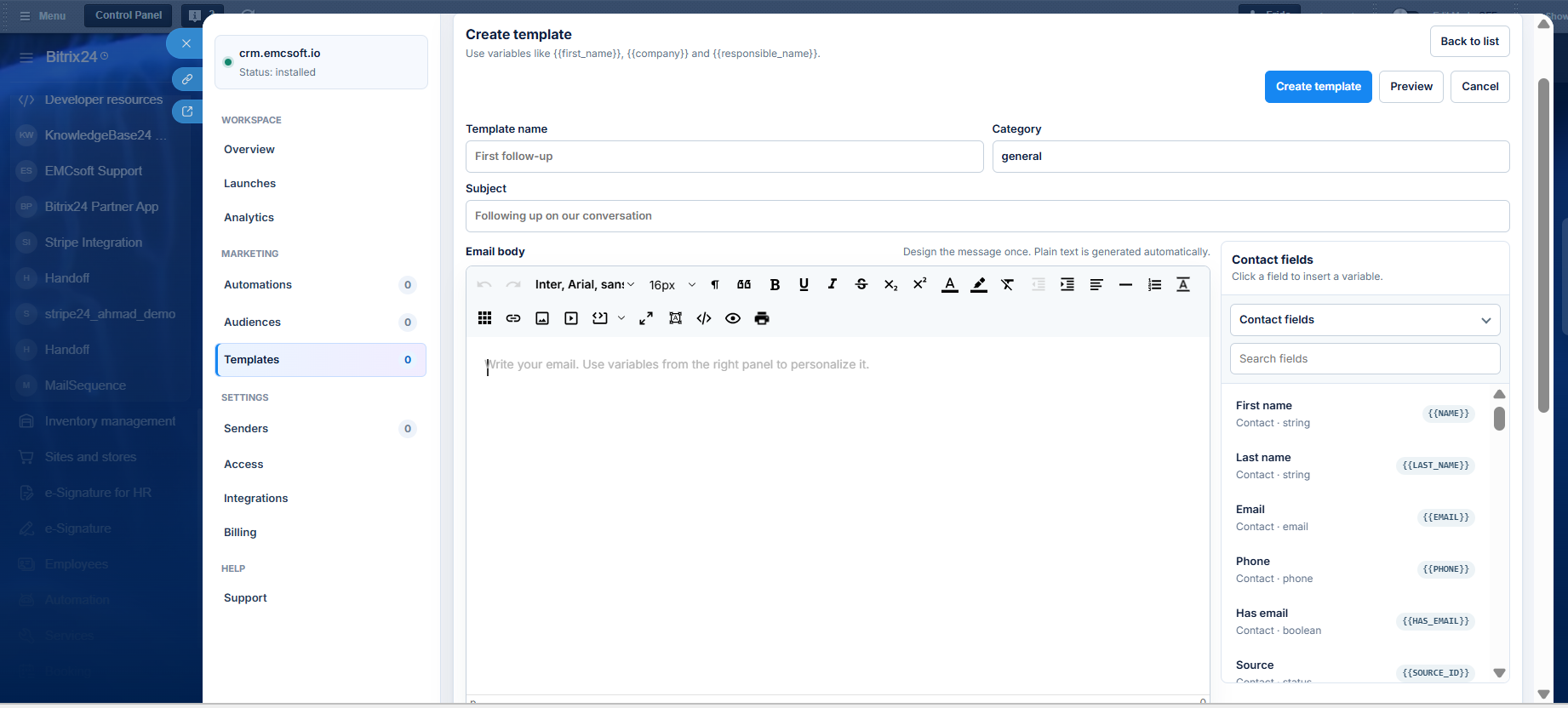
Templates

Create reusable email templates with personalized content.

Features

  • Template name
  • Manual category
  • Email subject
  • Email body
  • Personalization variables (Contact fields, Lead fields, Common variables)
Email Editor
The editor supports:
  • Font selection
  • Font size
  • Text color
  • Text formatting
  • Rich text editing
  • Document editing options
Templates allow users to create consistent email content while automatically inserting CRM information into every message.

SETTINGS

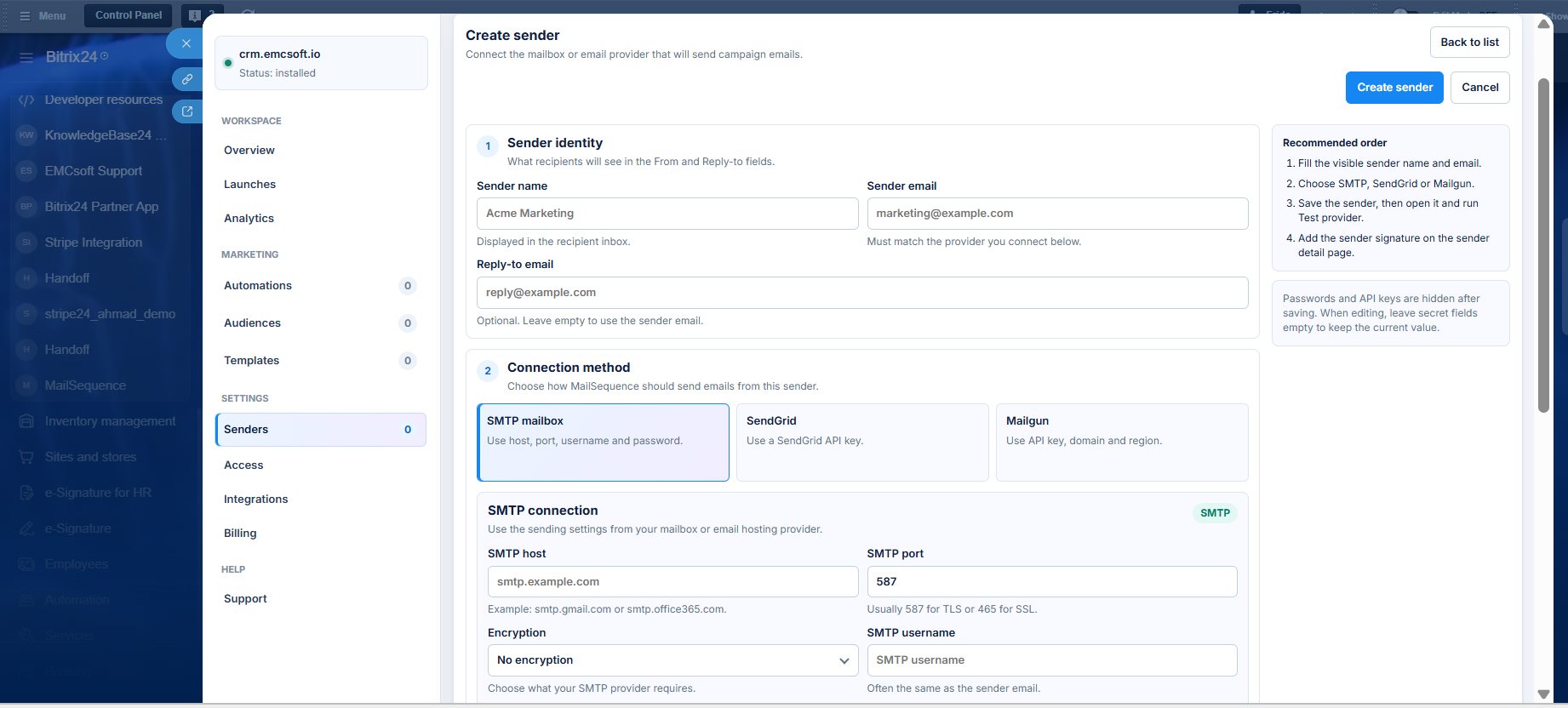
SENDERS

Configure email accounts used to send campaigns.

Sender Identity

  • Sender name
  • Sender email
  • Reply-to email
Connection Methods
SMTP
  • Host
  • Port
  • Username
  • Password
SendGrid
  • API Key
Mailgun
  • API Key
  • Domain
  • Region
Reply Tracking
Replies can be monitored through IMAP.

Options include:
  • Enable reply monitoring
  • Disable reply monitoring
Sending Limits
  • Daily limit
  • Hourly limit
A daily limit of 0 means MailSequence does not apply its own daily restriction.

The Senders section stores email accounts, connection details, reply tracking settings, and sending limits used throughout the application.

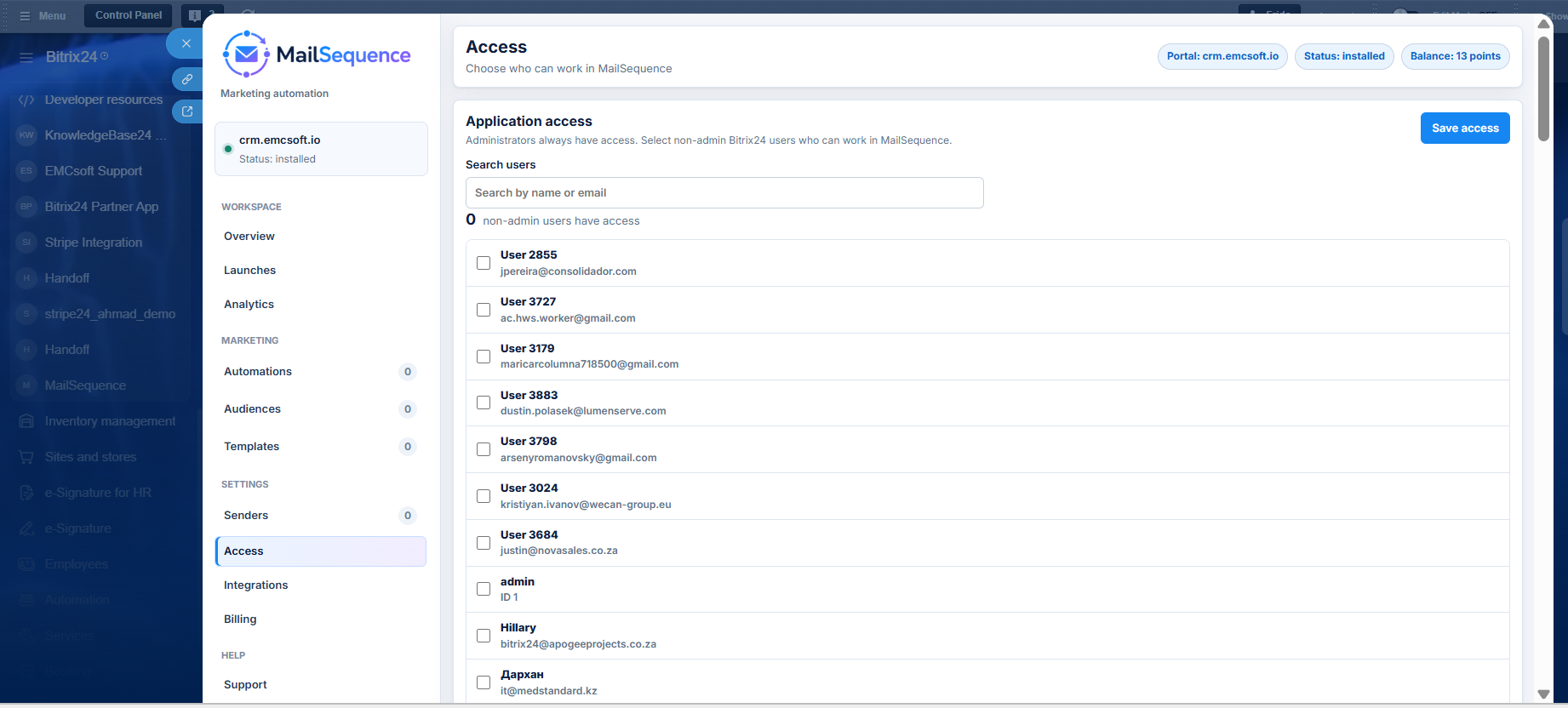
ACCESS

Control which Bitrix24 users can use MailSequence.

Features

  • Administrators always have access
  • Search users by name
  • Search users by email
  • Grant access to non-administrator users
Access settings ensure only authorized Bitrix24 users can create, edit, or launch email automations.

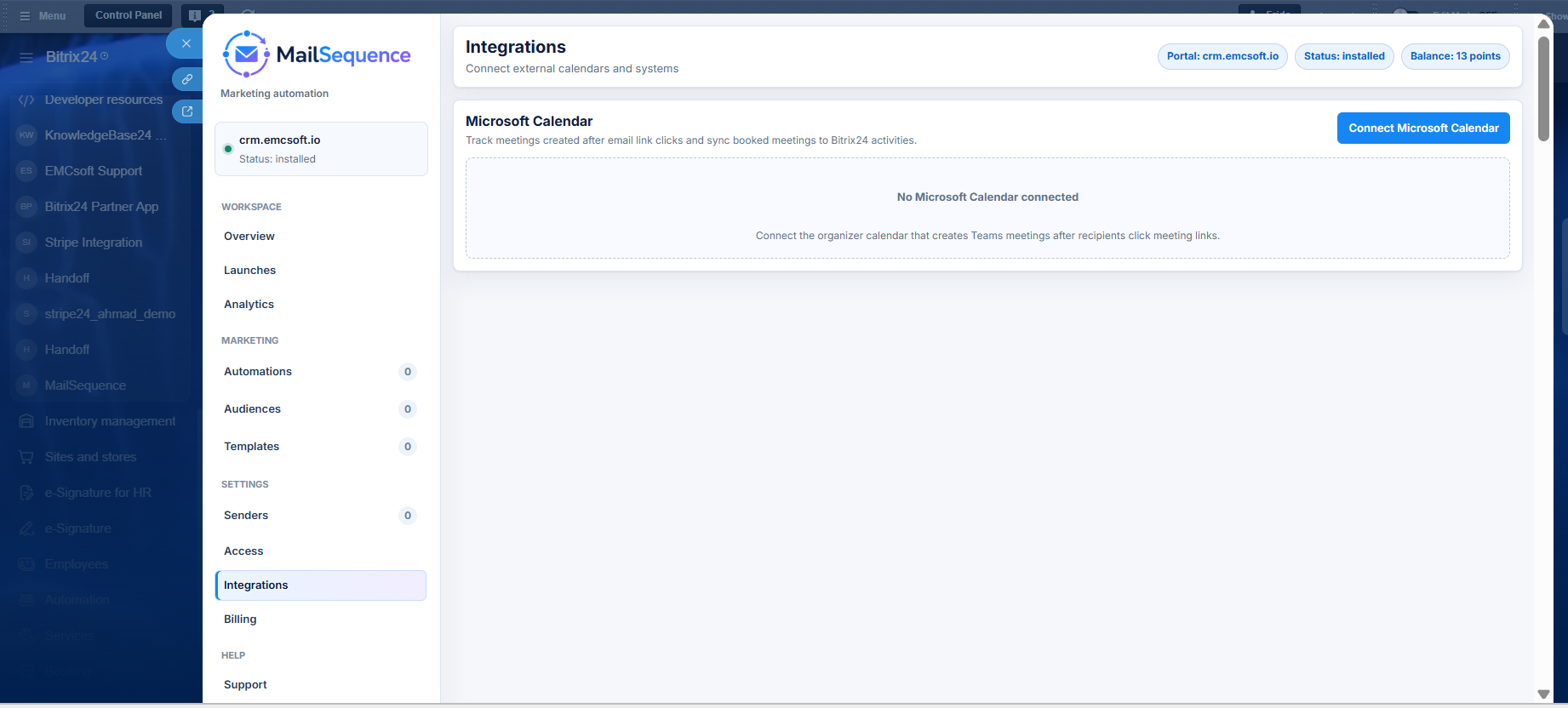
INTEGRATIONS

Connect external services to extend automation capabilities.

Microsoft Calendar Integration

  • Connect organizer calendar
  • Detect meetings created after email link clicks
  • Synchronize booked meetings to Bitrix24 activities
  • Support Microsoft Teams meeting scheduling
Integrations connect MailSequence with external scheduling services so meeting activity can be reflected inside Bitrix24.

BILLING

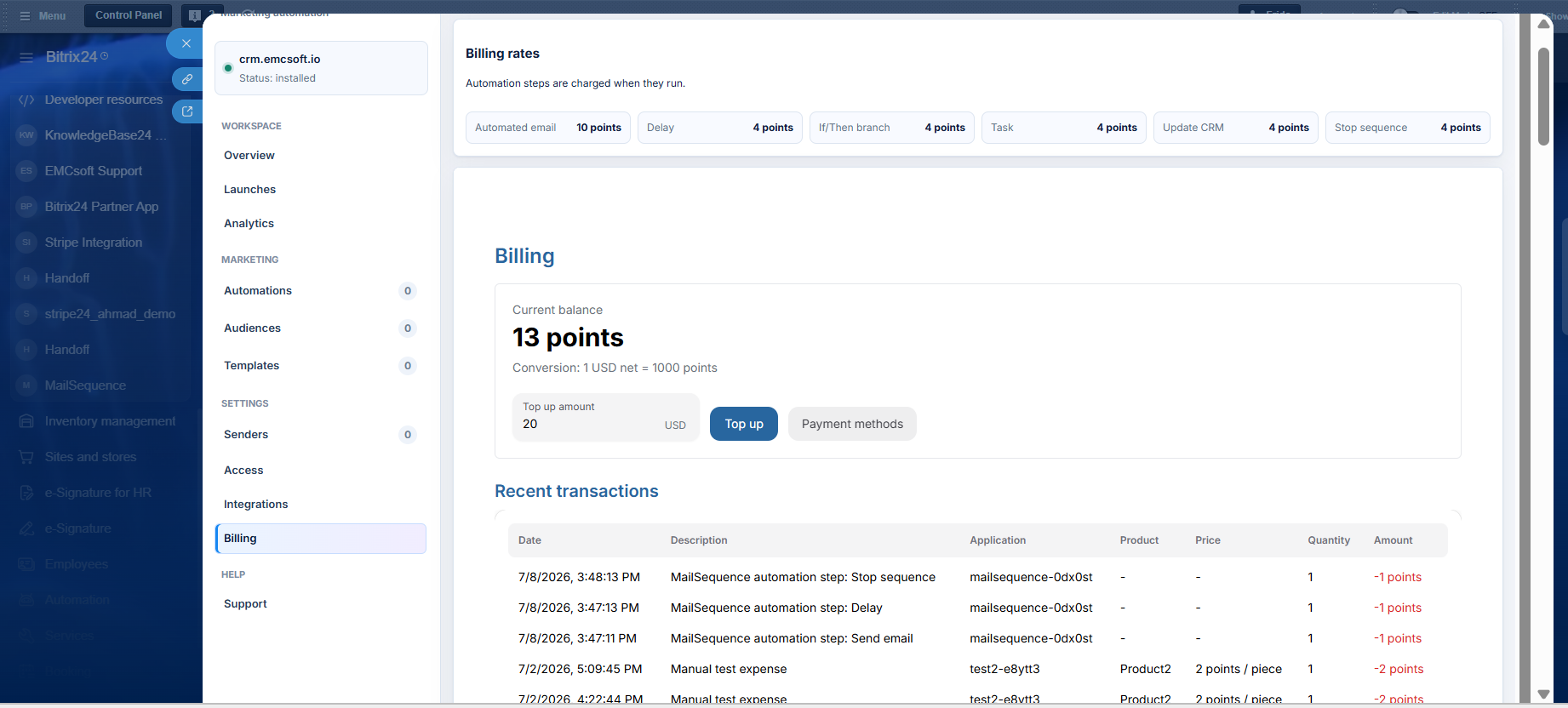
Manage account balance, usage, and payment history.

Billing Model

  • Automation steps consume points when executed.
  • Different automation actions may consume different numbers of points.
Points
  • 1 USD = 1,000 Points
Features
  • View current point balance
  • Add payment methods
  • Purchase additional points
  • Review transaction history
  • See when and why points were consumed
  • View usage dates
  • Download paid invoices
The Billing section provides complete visibility into account credits, point consumption, payments, and invoice history, allowing organizations to monitor application usage and manage operating costs efficiently.

How the application is installed


Go to Bitrix24 marketplace


Enter your contact details


Install MailSequence


Launch and manage personalized email sequences effortlessly from your Bitrix24 CRM


If you need help installing

MailSequence,

please fill out the form below.

Send Request Now!